Track Expenses Without Opening the App: How Automatic Logging Works
The four ways to log expenses automatically in 2026 — bank connections, notifications, Apple Pay, and voice — with their real limits, and how to set the whole thing up on your phone.
 SpendlyAI ·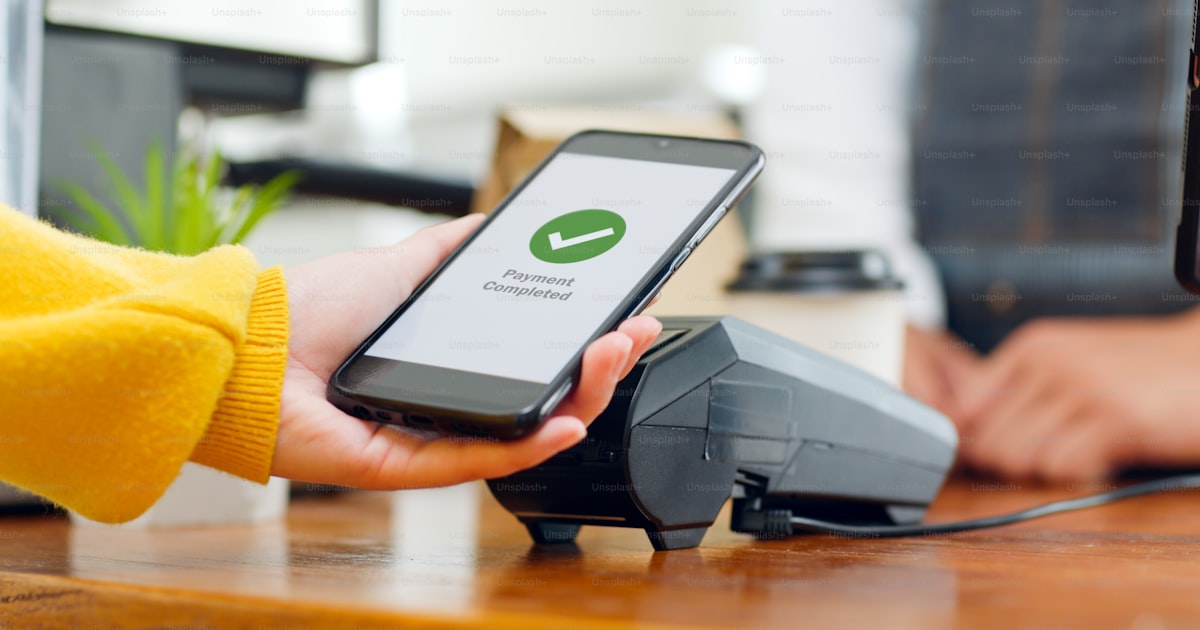
Everyone knows expense tracking works. Almost nobody keeps it up past a month. The reason isn’t willpower: the system requires remembering to do something boring several times a day, and that’s exactly the kind of task the brain drops first.
The fix isn’t more discipline — it’s removing the step. In 2026 there are four ways to get expenses logged without you opening anything, and they are not equally good. This guide explains how each one works, where it will fail you, and how to have it running in a few minutes.
Why manual logging always collapses
Logging one expense by hand takes twenty to forty seconds: open the app, type the amount, pick a category, pick an account, save. At five or six transactions a day that’s three minutes spread across six interruptions.
The problem isn’t the time, it’s the timing. Spending happens while you’re walking, standing in line, driving. Never when your hands are free and your head is on your finances. So it gets postponed, it piles up, and on Sunday you’re reconstructing the week from memory. That reconstruction is where the habit dies.
The uncomfortable conclusion for finance apps: the “add expense” screen is the number one cause of abandonment. Any system that depends on it has an expiration date.
The four ways to automate logging
1. Bank connection (open banking)
The app connects to your bank through an aggregator — Plaid, Tink, Belvo and similar — and pulls in transactions. It’s the cleanest route where it exists.
- For: full coverage of the account, including charges that never trigger a notification.
- Against: it only works if your bank is supported, which across Latin America, Asia, and much of Eastern Europe is the exception; it never sees cash; connections break and need re-authentication; and handing credentials to a third party isn’t something everyone wants to do.
2. Bank notifications (Android)
Your phone already gets an alert every time you pay. Android lets an app, with your explicit permission, read notifications from the apps you choose. That text — “Purchase of $84.32 at WHOLE FOODS with card ending 4321” — contains everything needed to create the transaction.
- For: works with any bank that sends notifications, in any country; no credentials involved; it also captures bank SMS if you select your Messages app.
- Against: Android only; if you mute your bank’s notifications there’s nothing to read; and the wording varies wildly between banks, so it needs a language model to interpret it rather than fixed templates.
3. Apple Pay and Shortcuts automations (iPhone)
iOS doesn’t let apps read other apps’ notifications, by design. But it does allow something equivalent: a Shortcuts automation that fires when you pay with Apple Pay or when a bank message arrives, handing that data to your finance app.
- For: built on Apple’s own official automation system; captures merchant, amount, and card straight from Wallet.
- Against: it takes a one-time setup, and physical card purchases outside Apple Pay only come through if your bank sends you an SMS.
4. Voice: Siri and Google Assistant
For cash and for anything no system can detect, there’s the fastest input that exists: saying it. “Hey Siri, log a 20 lunch expense” and it’s done, without unlocking the phone.
- For: covers cash, instant, doesn’t interrupt what you’re doing.
- Against: it depends on you remembering, which makes it the complement to the other three rather than the main system.
| Method | Where it works | Covers cash | Needs your bank |
|---|---|---|---|
| Bank connection | Supported banks (mostly US and Europe) | No | Yes, credentials |
| Notifications | Android, any bank | No | No |
| Apple Pay / Shortcuts | iPhone | No | No |
| Voice | iPhone and Android | Yes | No |
The combination that covers nearly everything is notifications or Apple Pay as the base, plus voice for cash.
What actually happens under the hood
A text arriving doesn’t mean a transaction exists. There are four steps in between, and they’re worth understanding because they explain why something occasionally doesn’t come through.
- Capture. The operating system hands over the event — the notification, the Apple Pay payment, the dictated phrase — and the app stores it in a local queue, raw, without interpreting it.
- Interpretation. A language model reads that text and extracts amount, merchant, currency, card, and date. This is where AI genuinely earns its place: no per-bank template survives the thousands of formats out there, and a model generalizes where a regular expression breaks.
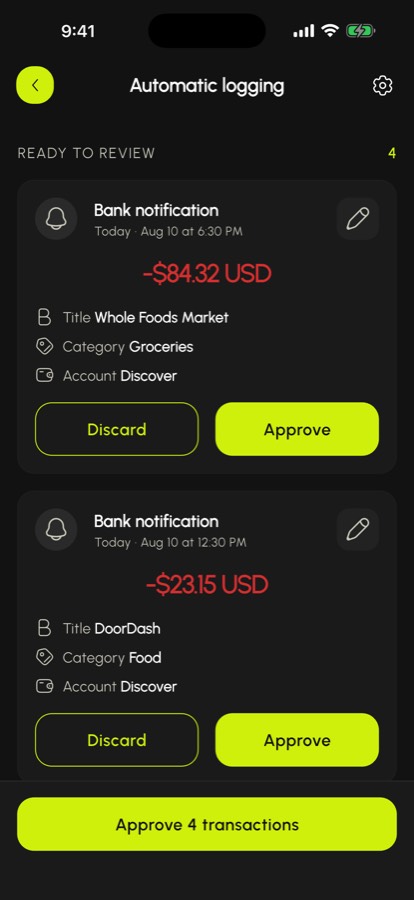
- Matching. The result is cross-referenced with your accounts and categories: the card ending 4321 is your credit card, that merchant is usually groceries. Duplicates get dropped too, because many banks send two alerts for the same purchase.
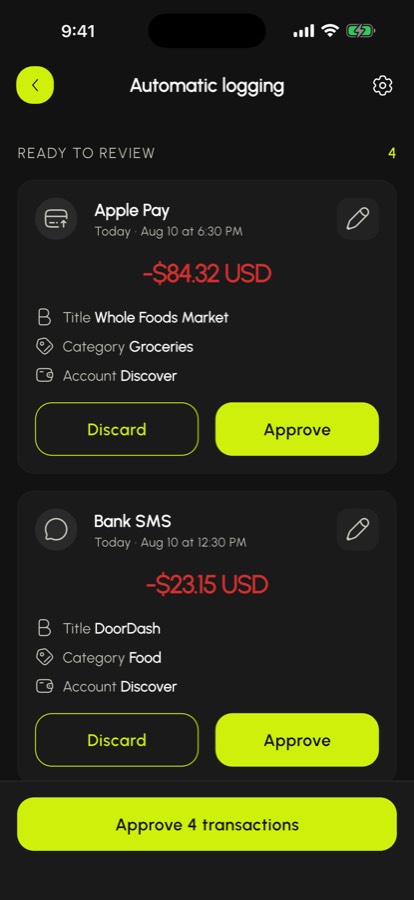
- Approval. The proposed transaction lands in an inbox and you confirm or correct it. This step should never be removed: it’s what stops a model’s mistake from quietly entering your numbers.
Which apps actually log expenses automatically
Plenty of apps advertise “automatic tracking” and mean bank connection only. Here’s who does what.
| App | How it captures | Works without a bank connection | Covers non-US banks |
|---|---|---|---|
| SpendlyAI | Android notifications, Apple Pay and SMS via Shortcuts, Siri and Google Assistant, receipt photos, full bank statements | Yes | Yes, any bank that notifies |
| Copilot Money | Bank connection | No | No |
| Rocket Money | Bank connection | No | No |
| Monarch Money | Bank connection | No | Limited |
| MonAI | Notifications and Shortcuts | Yes | Yes |
| Wallet by BudgetBakers | Bank connection plus manual entry | Partly | Partly |
Capture payment alerts, organize expenses with AI and keep your budget in view. SpendlyAI brings automatic logging and financial planning together on iPhone and Android.
How to set it up
With SpendlyAI it takes a few minutes and depends on your phone.
Android: Capture payment notifications from the banking, messaging and email apps you select. Notification access is required.
iPhone: Use Shortcuts automations for Apple Pay, bank SMS and payment emails received in Apple Mail. Set up each sender you want to capture.
On both: it’s worth dictating your first cash expense to Siri or Assistant the same day, so that habit gets installed alongside the rest.
Capture and channel setup are free. Earn a rewarded-ad reward to analyze captured movements, then review them before approval. Premium analyzes captured movements automatically, without ads. Review the proposed transactions before approving them.
What to check even with automation on
Automatic isn’t infallible. Three things are worth a two-minute look once a week:
- The categories. The model learns from your corrections, but the first few weeks it pays to correct so it learns well.
- Duplicates. If your bank sends both a notification and an SMS for one purchase, the system should pair them; check that it did.
- The gaps. Physical card purchases at a bank that doesn’t notify, transfers between your own accounts, and cash are the three usual sources of missing transactions.
Privacy: what to check before granting access
You’re giving an app access to a sensitive stream of information. Three questions before you accept:
- Where is the text processed and what gets stored? The reasonable answer is that raw text stays on the phone and only what’s needed for interpretation is sent, without ending up in any log.
- Can you choose which apps get read? A permission you scope to three apps is far better than one that covers everything.
- Does the app live on advertising? If the business model is selling behavior to advertisers, that’s not where you want your banking activity.
Frequently asked questions
Can you track expenses without opening the app?
Capture payment notifications from the banking, messaging and email apps you select. Notification access is required. Use Shortcuts automations for Apple Pay, bank SMS and payment emails received in Apple Mail. Set up each sender you want to capture.
Do I need to connect my bank account?
No. Bank connection is one of the four routes, and the only one requiring credentials. Notifications, Apple Pay, and voice all work without linking any account, which is what makes this usable in countries where open banking never arrived.
Does it work with any bank?
A direct bank connection is not required. Capture depends on payment alerts reaching your configured channels, device permissions and enough information in the alert to interpret the movement. Always review the result.
Is it safe to give an app access to my notifications?
It depends on the app. What you should demand is the ability to choose which apps get read, a guarantee that content isn’t stored or logged, and a company that doesn’t make money selling data. The Android permission is revocable at any time from system settings.
What about cash expenses?
No system detects them, because they leave no digital trace. The practical route is dictation: “log 20 for lunch” to Siri or Google Assistant takes three seconds and doesn’t require unlocking the phone.
Does the AI get categories wrong?
Sometimes, especially with ambiguously named merchants. That’s why the approval step shouldn’t disappear: you review, correct what’s needed, and the system learns from those corrections. After a few weeks most transactions land correctly the first time.
The bottom line
Expense tracking doesn’t fail from lack of character — it fails because it demands memory and time at the worst possible moment. Automate the capture with whatever works in your country (notifications on Android, Apple Pay on iPhone), keep voice for cash, and leave yourself only the approval step. Once logging stops being a task, the habit stops depending on whether today is a good day. For the method behind the habit, continue with how to track expenses.